
Within the Admin menu, Layout Settings contains 3 sub-pages for adjusting the finer details of your site:
-
Header & Footer - Set your site logo, logo link, menu settings, and footer settings.
-
Meta & Analytics - Set your site name, meta description, meta image, and analytics connectors.
-
Theme Settings - Set your site colours and fonts.
How to Access Layout Settings
-
Log In to a CrowdChange account with Admin permissions.
-
Click Profile → Admin in the upper right-hand corner of the site. You will be taken to General Settings.
-
On the left sidebar, click Layout Settings, and select one of the three sub-pages.
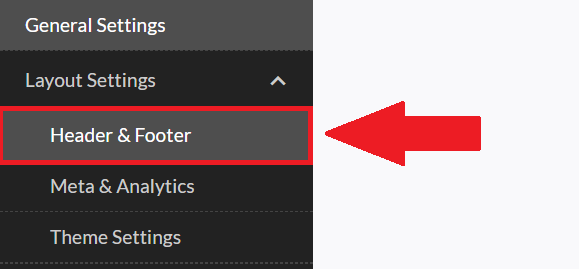
Header & Footer Page
On the Header & Footer page, you can do the following:
-
Upload a Logo to appear in the top-left hand corner of your CrowdChange site.
-
Add a Logo Link to redirect users to a certain webpage when the logo is clicked.
-
Add additional header menu links within Menu Settings.
-
Adjust footer information within Footer Settings.
Ensure to click Save at the bottom to confirm your changes.
Meta & Analytics Page
On the Meta & Analytics page, you can do the following:
-
Edit the Site Name - This can be changed at any time.
-
Edit the Meta Description and Meta Image which will appear across your Social Media Accounts.
-
Enter your Google Tracking ID, Google Tag Manager, Facebook Pixel ID and Facebook Meta Tag Domain Verification. This is optional, however, if your organization uses any of these analytics programs, we suggest entering the account details here.
See also Analytics Connectors, to learn more.
Theme Settings Page
On the Theme Settings page, you can do the following:
-
Set your Primary site colour - this is the main colour used for borders, buttons, links, progress bars and form controls (e.g. checkboxes, radio buttons & select boxes).
-
Set your Header background colour.
-
Set your Header Bar Background colour.
-
Set your Header Text colour.
-
Set your Footer Background colour.
-
Set your Footer Text colour.
-
Choose your Font.
-
If desired, you can also click ‘Advanced settings’ to import a custom font.
-