
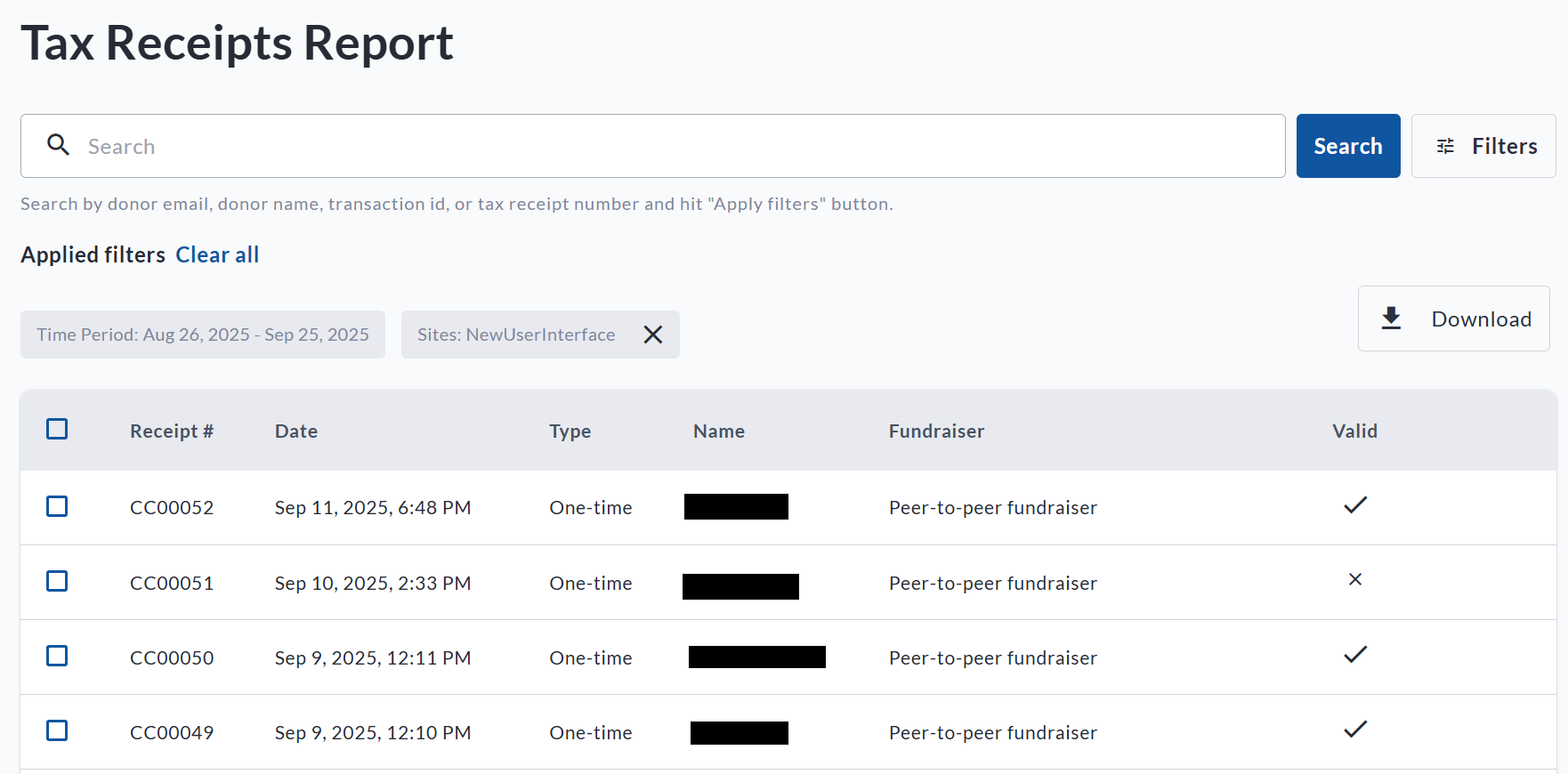
The Tax Receipts Report allows Admin users to view, manage, and take action on all issued tax receipts across your CrowdChange site. This report is designed to help you quickly find receipts, re-send them to donors, void them, or issue replacements.
Accessing the Tax Receipts Report
To access this report:
-
Log in to your CrowdChange site.
-
Click Profile in the top right corner, then select Admin.
-
In the left-hand menu, click Reports, then Tax Receipts Report.
What You Can Do in the Tax Receipts Report
Once inside the report, you'll be able to:
-
Search for specific receipts using filters such as date range, fundraiser, donor name, or email.
-
Download:
-
A detailed CSV file of all issued tax receipts within your selected date range.
-
A ZIP archive containing all PDF copies of the receipts in your filtered view.
-
-
Re-send Receipts to the original recipient or to a new email address.
-
Void a tax receipt (for example, if a donation was refunded or incorrect).
-
Re-issue a corrected version of a receipt if any donor details need updating.
For more details on re-issuing tax receipts, see our article: How to Re-Issue a Tax Receipt .
Batch Actions
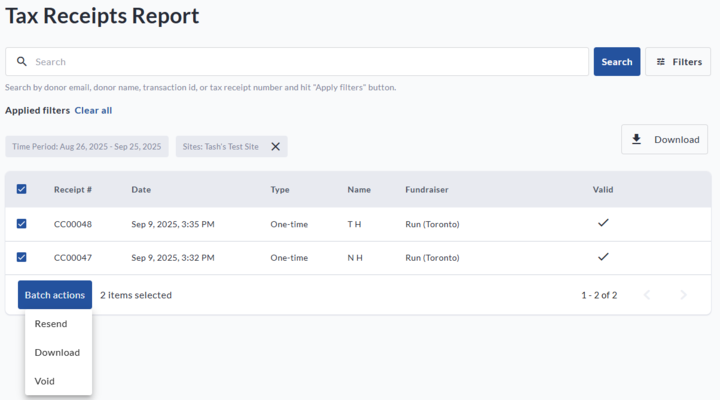
You can also take action on multiple receipts at once using the checkboxes in the report:
-
Resend multiple receipts to their original recipients.
-
Download selected receipts as a bulk ZIP archive.
-
Void multiple receipts at once if needed.
This makes it easy to handle year-end summaries, campaign follow-ups, or corrections in bulk.
Important Notes
-
This report only displays receipts that have already been issued. Transactions that have not yet generated a receipt (due to ineligibility, minimum threshold not met, or being in a pending state) will not appear.
-
Voided receipts are marked as such in the system and on the PDF itself.
-
Re-issuing a receipt will automatically void the original version.