
You can use the Site-Level Access Manager to set custom administrative permissions for new or existing users across your CrowdChange site.
Prerequisites:
To be able to access Admin → Access Manager the following conditions must be met:
-
Access Manager feature must be enabled on your CrowdChange site.
-
You must have User Manager permissions.
Once these conditions are met, follow the simple steps below to get started:
-
From anywhere on your CrowdChange site, go to Profile → Admin.

-
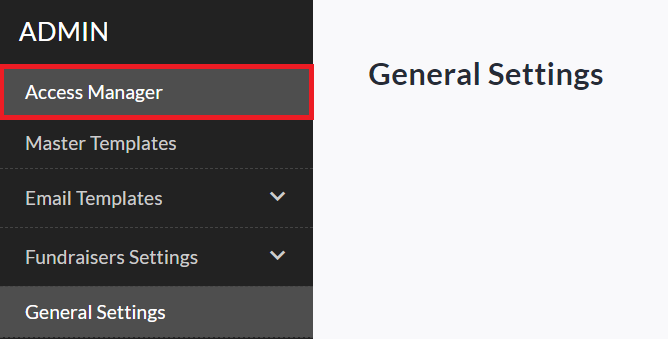
Click the Access Manager tab on the left sidebar.
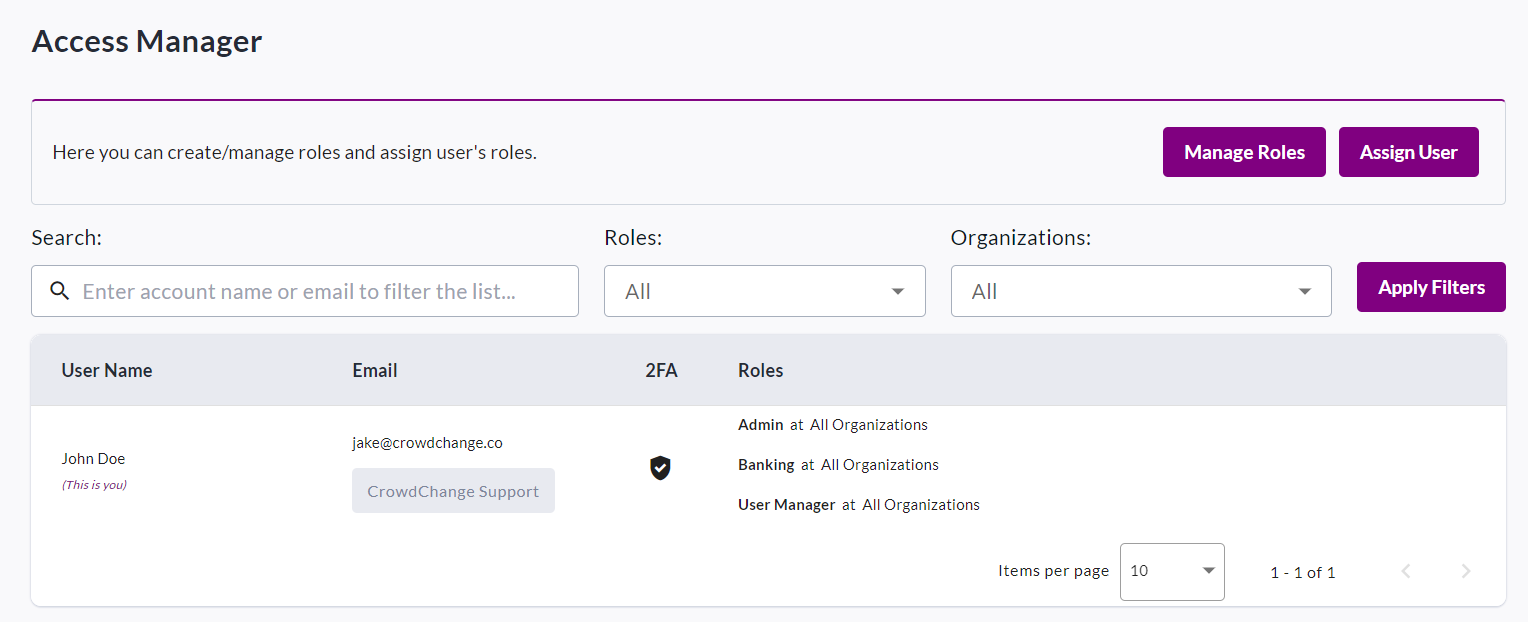
You will be taken to the site-level Access Manager where you will be shown a list of any added users and their assigned roles. The default roles available to be assigned are Admin, Banking and User Manager. You may also add custom roles with specific sets of permissions (for example: Reports-Only access). Roles can be assigned to existing users or new users via email invitation.
-
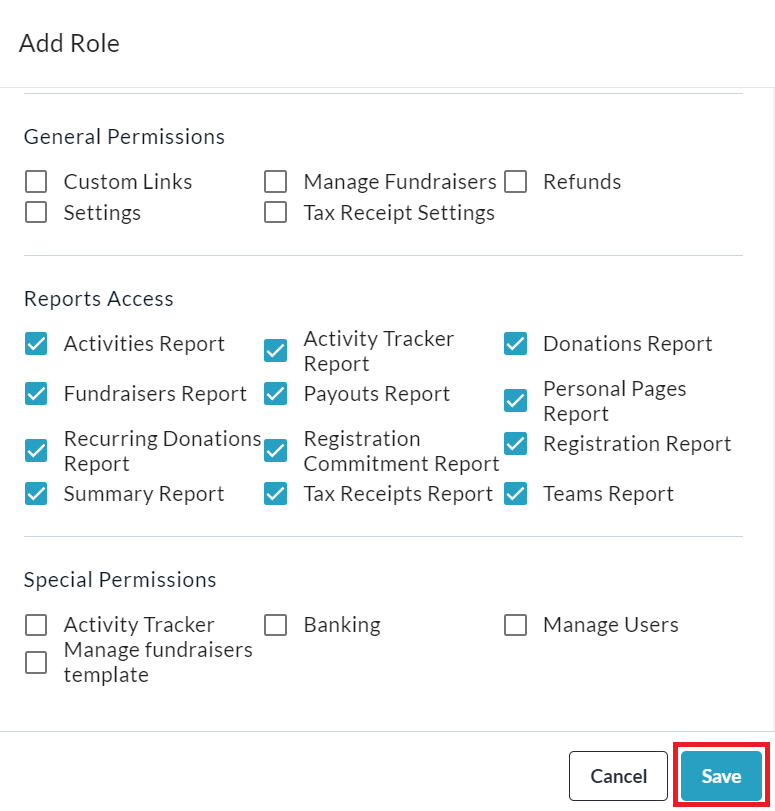
Optional: To create new custom role, click Manage Roles, then Add Role. Check all the permissions you would like to give this user and click Save to confirm. See an example below of ‘Reports-Only’ access.
-
From the main page of the Site-level Access Manager (see Step 2), click Assign User to assign existing role(s) to a new or existing user. You can also assign roles per-organization if this feature is utilized.
-
If the user does not already have a CrowdChange account, they will be sent an email invitation to create one and accept the permissions.
-
-
You can update or remove existing permissions from the user list using the pencil and 'x' buttons:
