
As a site Admin, the Recurring Donations Report gives you a detailed list of all subscriptions across your CrowdChange site, and allows you to update them on behalf of your donors. (See: Recurring Donations).
You can update the card details, change the recurring donation amount, the payment day, skip a payment, and pause, resume or cancel a recurring donation. Please note that you can not change a donation amount to be less than the minimum set at the Admin > General Settings level.
To access this report, follow these simple steps:
-
Go to your CrowdChange site and Log In.
-
Click your name in in the top right corner, then Admin.
-
Go to Reports > Recurring Donations Report using the left sidebar. You will be taken here:
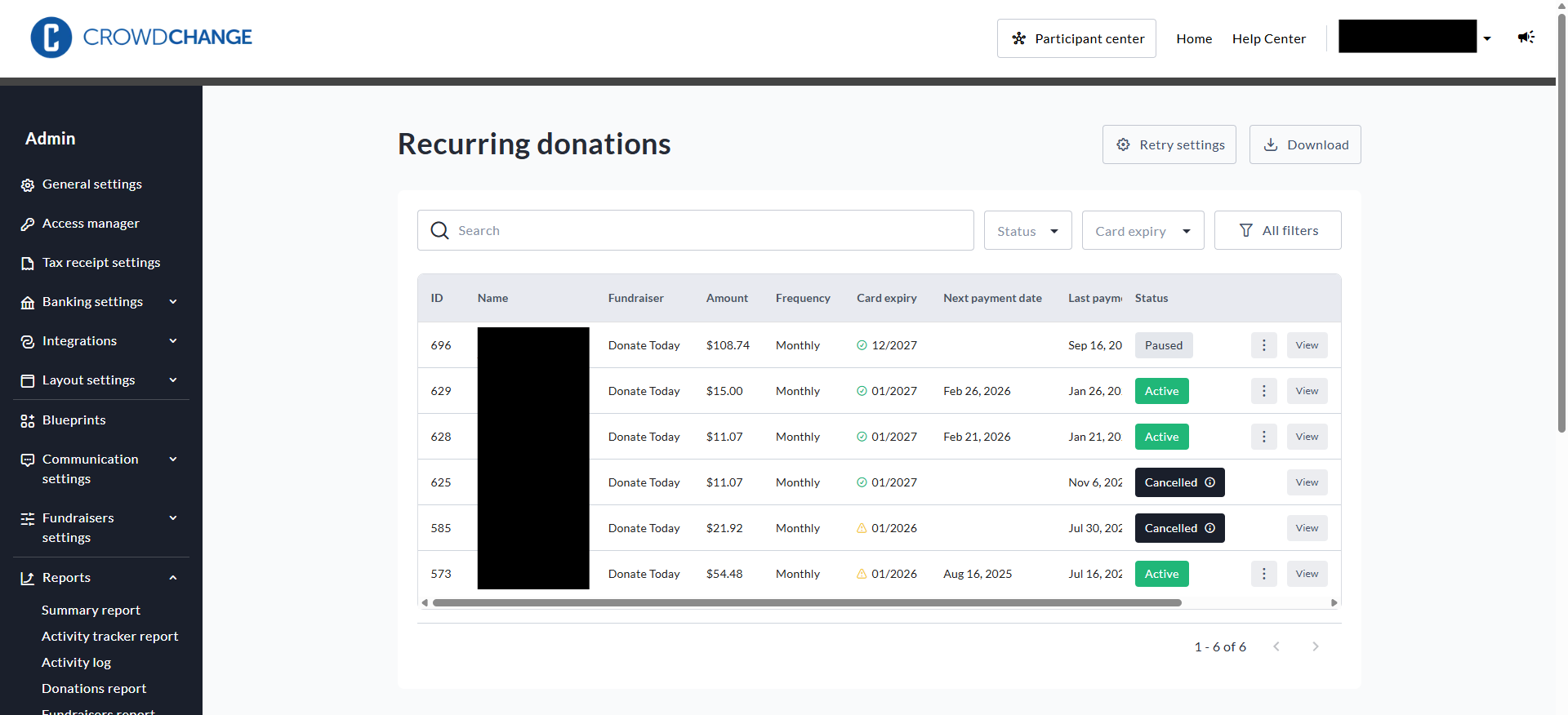
Subscription statuses
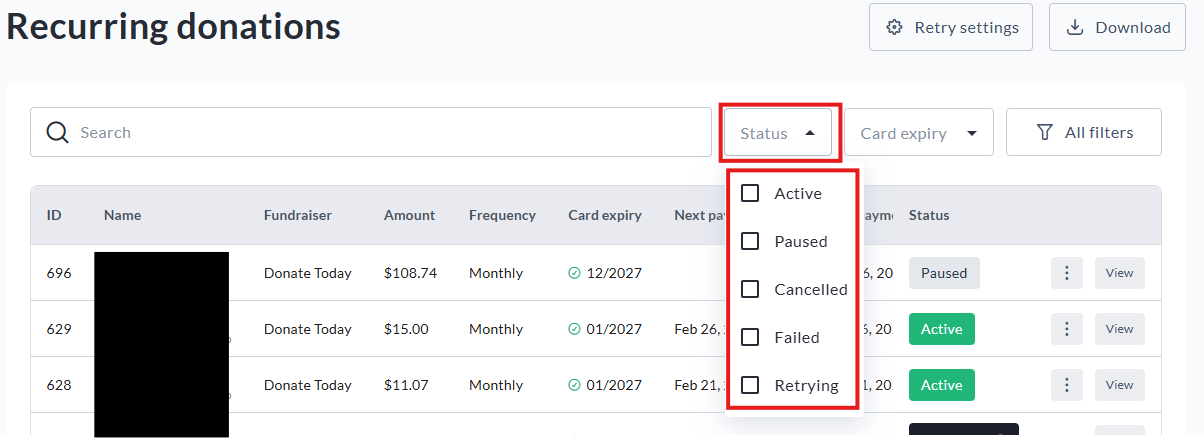
There are five statuses that a recurring donation can have. They are as follows:
-
Active - this means that a subscription is active, and will be processed at the rate selected by the donor (monthly or annually).
-
Paused - this means that the subscription is still active, but payments are Paused. Donors can Pause or Resume their paused donation via their Profile. Site admins can Pause or Resume a paused subscription via the Recurring donations report.
-
Cancelled - this means that a subscription has been manually cancelled, either by the donor or a site admin. Cancelled subscriptions cannot be resumed - if a donor wants to subscribe again, they would need to initiate a new subscription by making a new transaction.
-
Failed - this means that a subscription has been cancelled automatically due to a failed transaction. Transactions are retried at a set rate prior to failing, outlined below in the Retry settings section. Like the Cancelled status, this transaction cannot be resumed.
-
Retrying - a subscription marked retrying has had at least one transaction attempted, but has failed thus far. The transaction is not marked as failed yet as the Retry settings has not yet gone through all attempts.
Site admins can filter for the above statuses by clicking Status beside the search bar at the top of the Recurring donations report page (see below).
Site admins can also track expiring credit cards by using the Card expiry filter shown below:
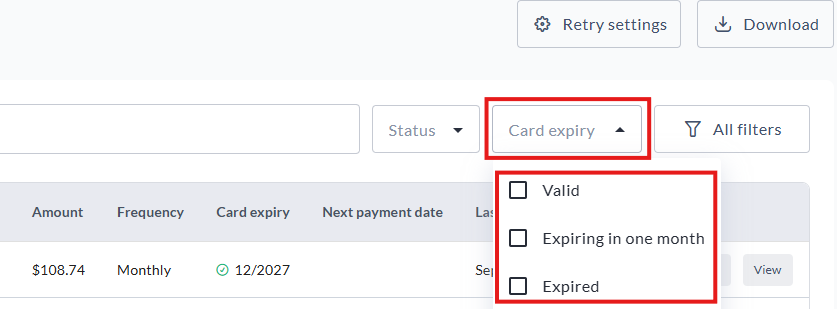
This can help site admins track donations at risk of failure due to card expiration.
Some payment processors include a feature that automatically updates credit card information for recurring donations when a card is renewed, as long as the details remain consistent. This helps prevent interruptions in monthly/annual giving. For more information on whether or not your account is already using this function, please contact your Partner Success Manager.
Changing a recurring donation
If you would like to change the amount, frequency, payment information, or status of a recurring gift, please follow these steps:
-
Go to your CrowdChange site and log in to your account with Admin access
-
Click your name in the upper right-hand corner of your screen, then click Admin
-
From the Admin dashboard, click Reports, then Recurring donations report
-
Once on the Recurring donations report, find the donation you want to adjust either by scrolling or searching
-
Once you have found the donation in question, click the three dots on the right hand side of the donation
You will then be met with the following options:
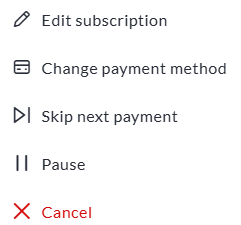
You can adjust the amount, frequency and timing of said donation (see below) by clicking Edit subscription.
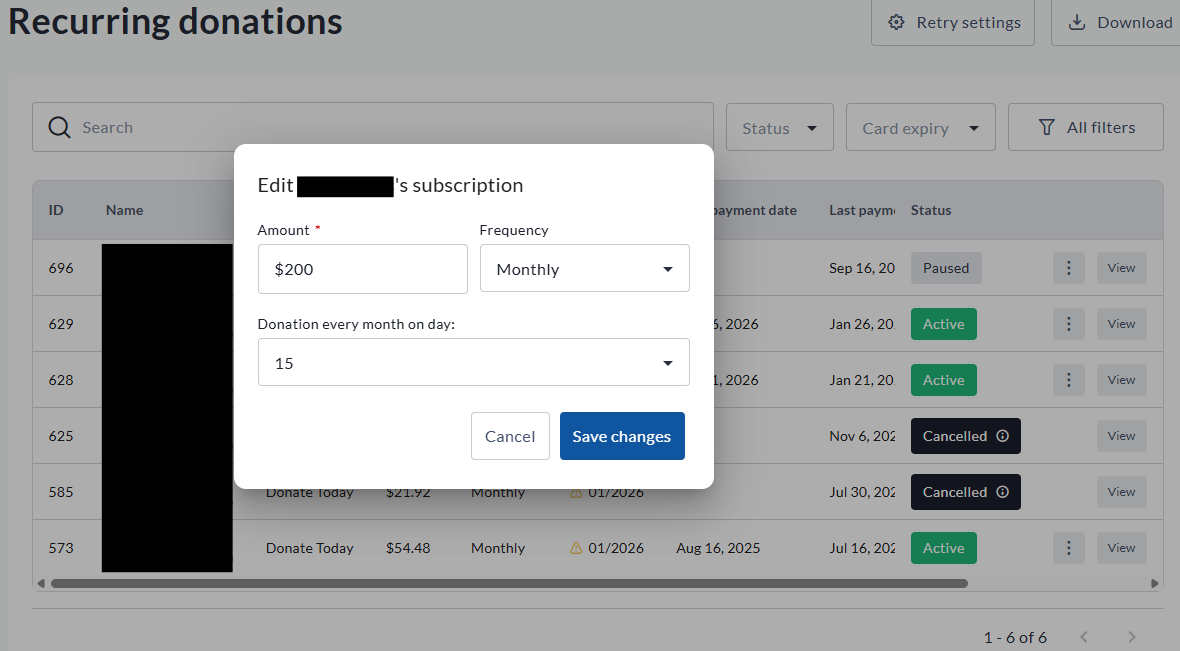
You can also update the payment method (change card) of the recurring donation by selecting Change payment method.
You can elect to Skip next payment if you want to maintain the subscription, but opt out of the next scheduled payment.
You can Pause the subscription, which maintains the ability to resume in the future, but stops payments from occuring as scheduled until manually resumed.
Finally, you can Cancel the recurring donation outright, which stops the subscription. Please note a cancelled subscription cannot be renewed.
Retry settings
The Retry settings page allows you to set the schedule that additional payment attempts are charged to a donor’s credit card after a scheduled recurring payment fails. You can set up to five retry attempts for a failed transaction. After all five attempts have failed, a subscription is set as Paused. No further retries will be attempted unless the subscription is manually resumed.
To access and set up your Retry settings, please follow these steps:
-
Go to your CrowdChange site and log in to your account with Admin access
-
Click your name in the upper right-hand corner of your screen, then click Admin
-
From the Admin dashboard, click Reports, then Recurring donations report
-
Once on the Recurring donations report, click Retry settings
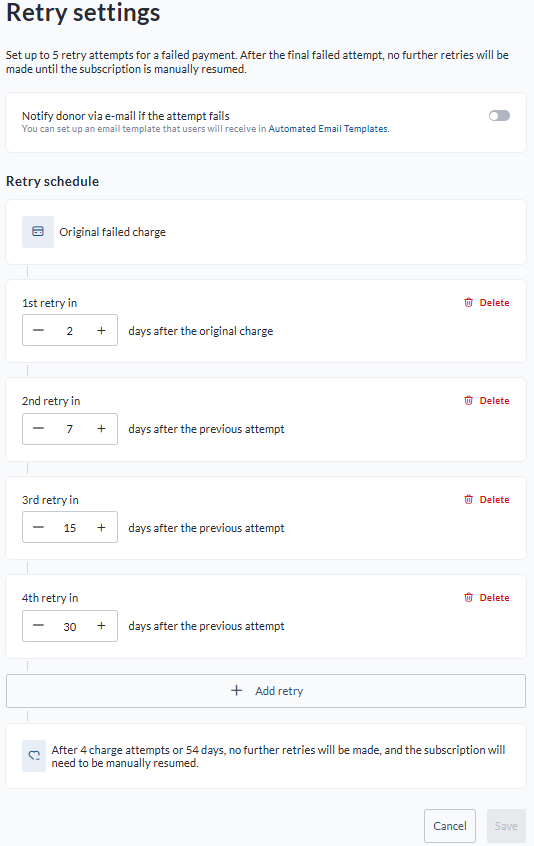
Once on this page you can set up to five retry attempts based on the schedule that best suits your organization.
Recurring donation details - breaking down a subscription
Within the Recurring donations report, you can see a breakdown of an individual subscription by clicking View.
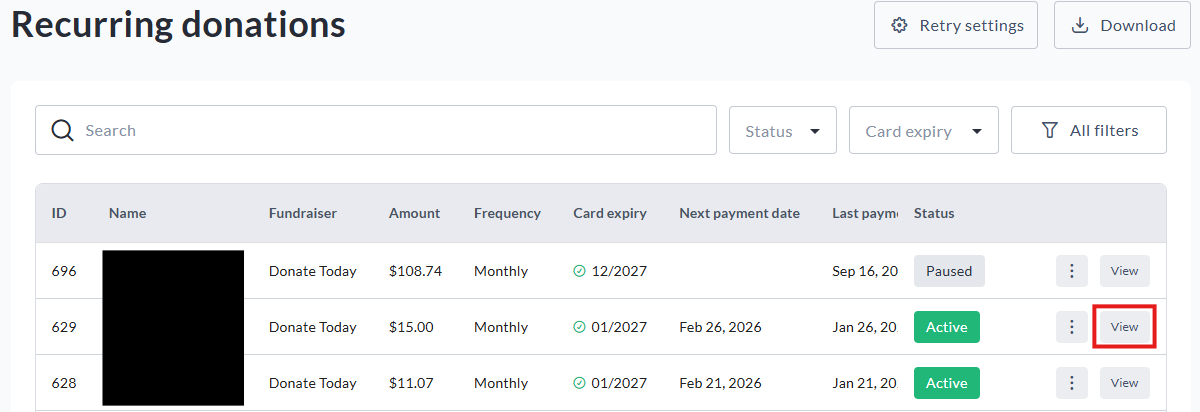
This includes:
-
Donation amount
-
Frequency
-
Which fundraiser the donation has been made to
-
When the subscription was created (first payment date)
-
When the next payment is scheduled
-
Record of attempted transactions that have failed (if applicable)
-
Links to individual transaction details for each payment
-
Credit card type
-
Last four digits of credit card number
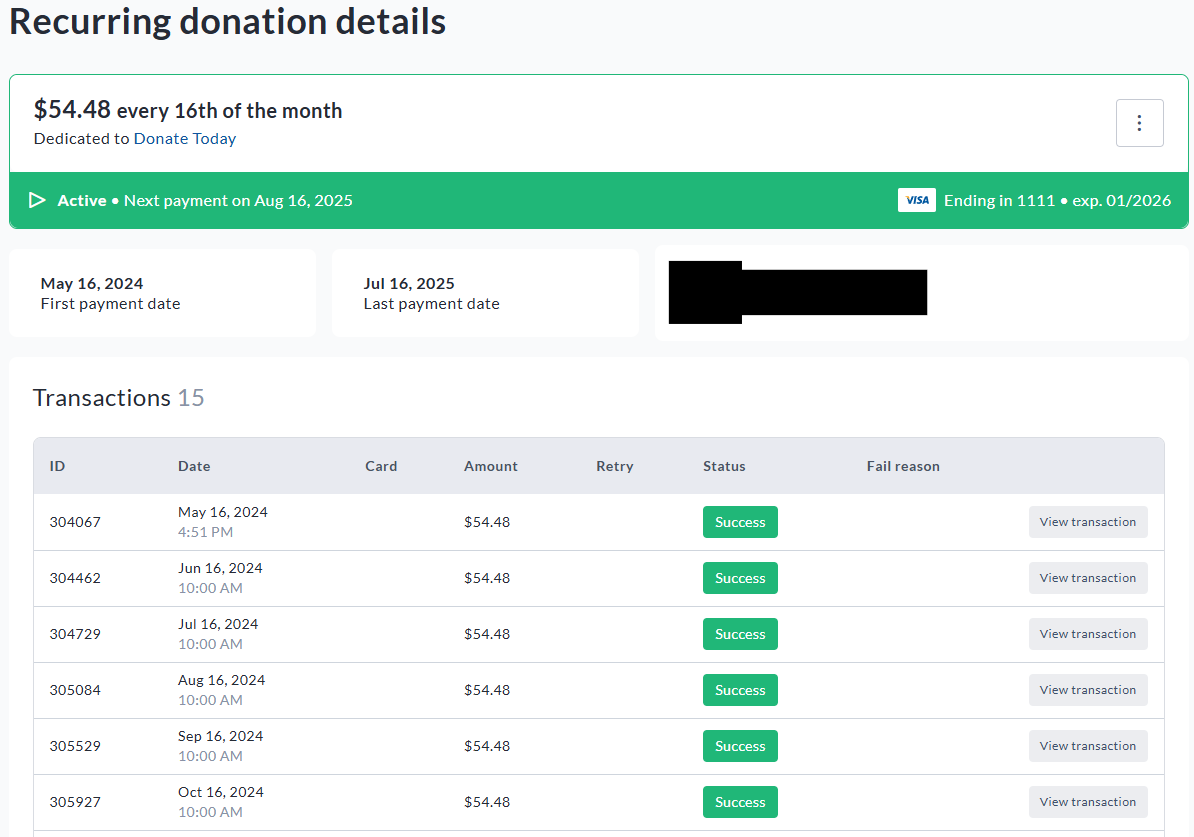
Clicking the three dot menu on this page also allows the same update options listed in the above section.
IMPORTANT: Please note that Tax Receipts for recurring donations are generated at year-end (First week of January of the following year) and are populated in your Tax Receipts Report automatically. All recurring donations for the year are consolidated into one tax receipt. These receipts are NOT sent to donors automatically - you can send these receipts manually by downloading the receipts , or send these receipts using pre-built automated emails in the Tax receipts report.