
Tax receipts can be re-issued, issued, voided, re-sent and/or downloaded on a transaction-by-transaction basis within the Tax Receipts Report of your CrowdChange site. Additionally, you can download either a ZIP archive containing all PDF tax receipts within your date range and filters set, or an Excel Tax Receipts Report.
To access this report, follow these simple steps:
-
Go to your CrowdChange site and Log In.
-
Click Profile in in the top right corner, then Admin.
-
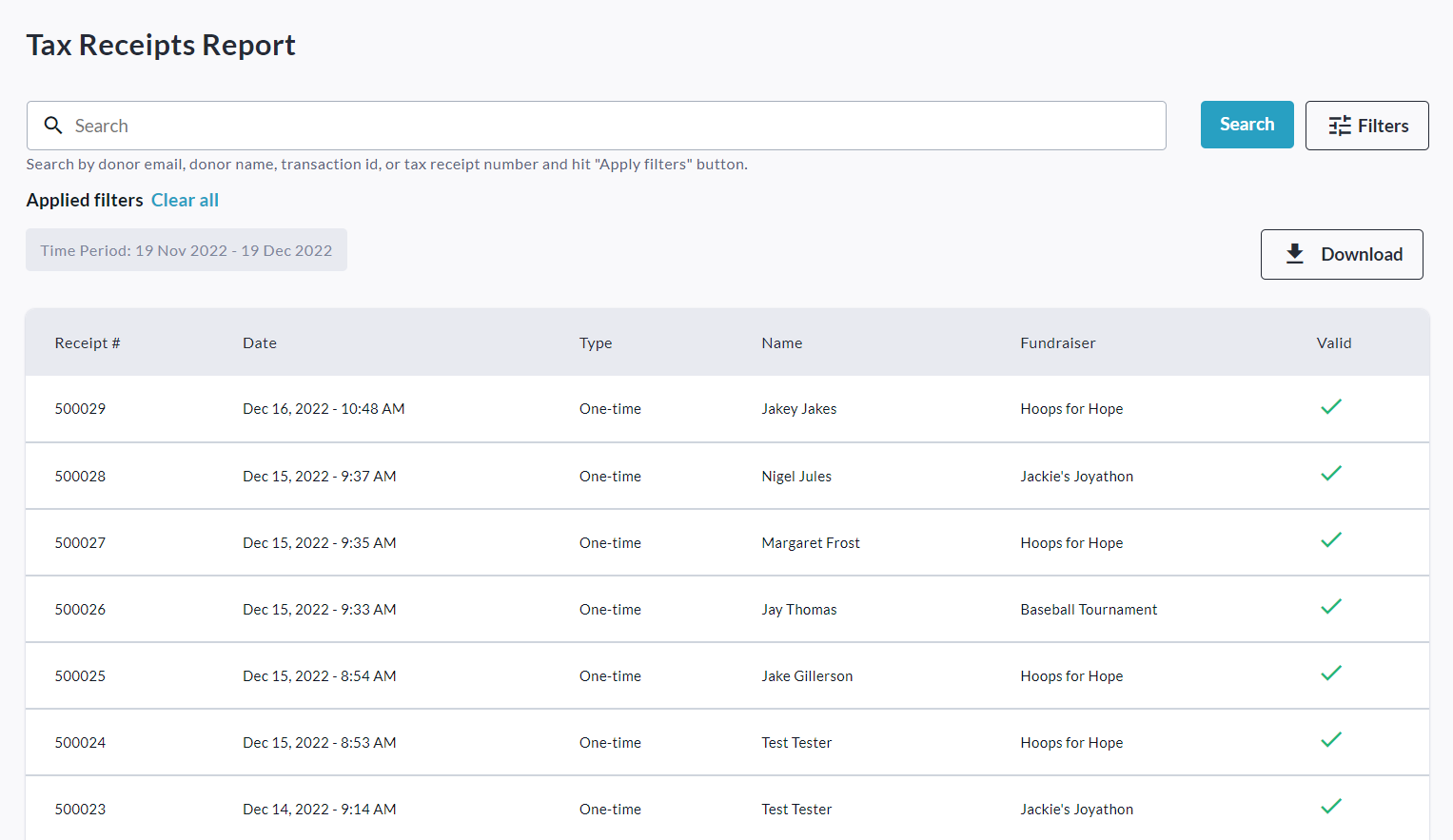
Go to Reports > Tax Receipts Report using the left sidebar. You will be taken here:
-
If you are looking for a specific tax receipt, you can use the search bar to search by Donor Name, Email, Tax Receipt Number, or Transaction ID.
-
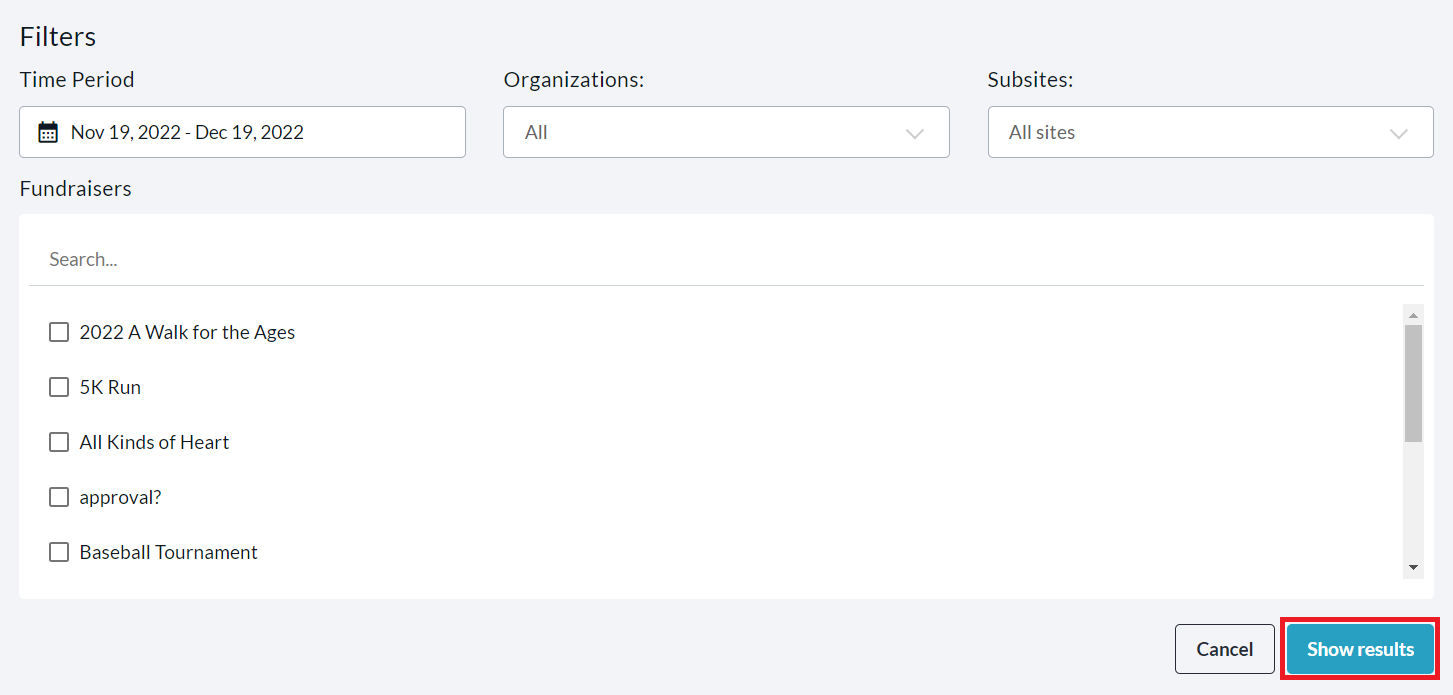
Clicking the Filters button allows you to filter for a specific Time Period, Organization, Subsite or Fundraiser using their respective dropdown menus. Be sure to click Show results to apply these filters.
-
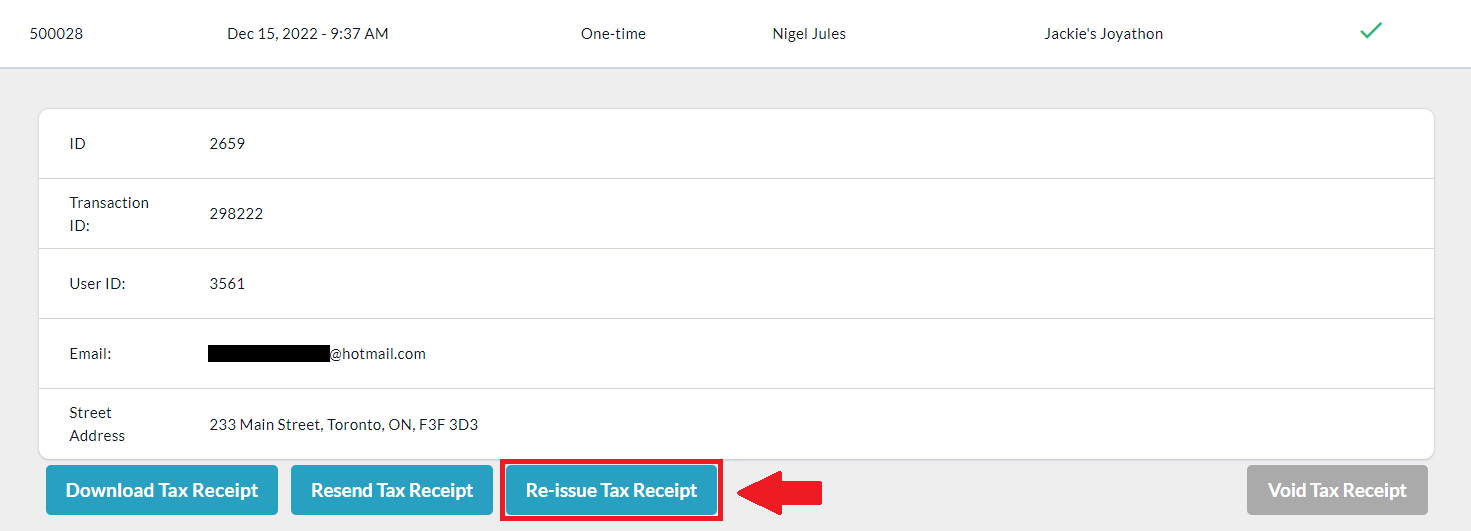
Once you’ve found your desired tax receipt, click on it, then click Re-Issue Tax Receipt.
-
Enter the updated information as required and click Reissue.
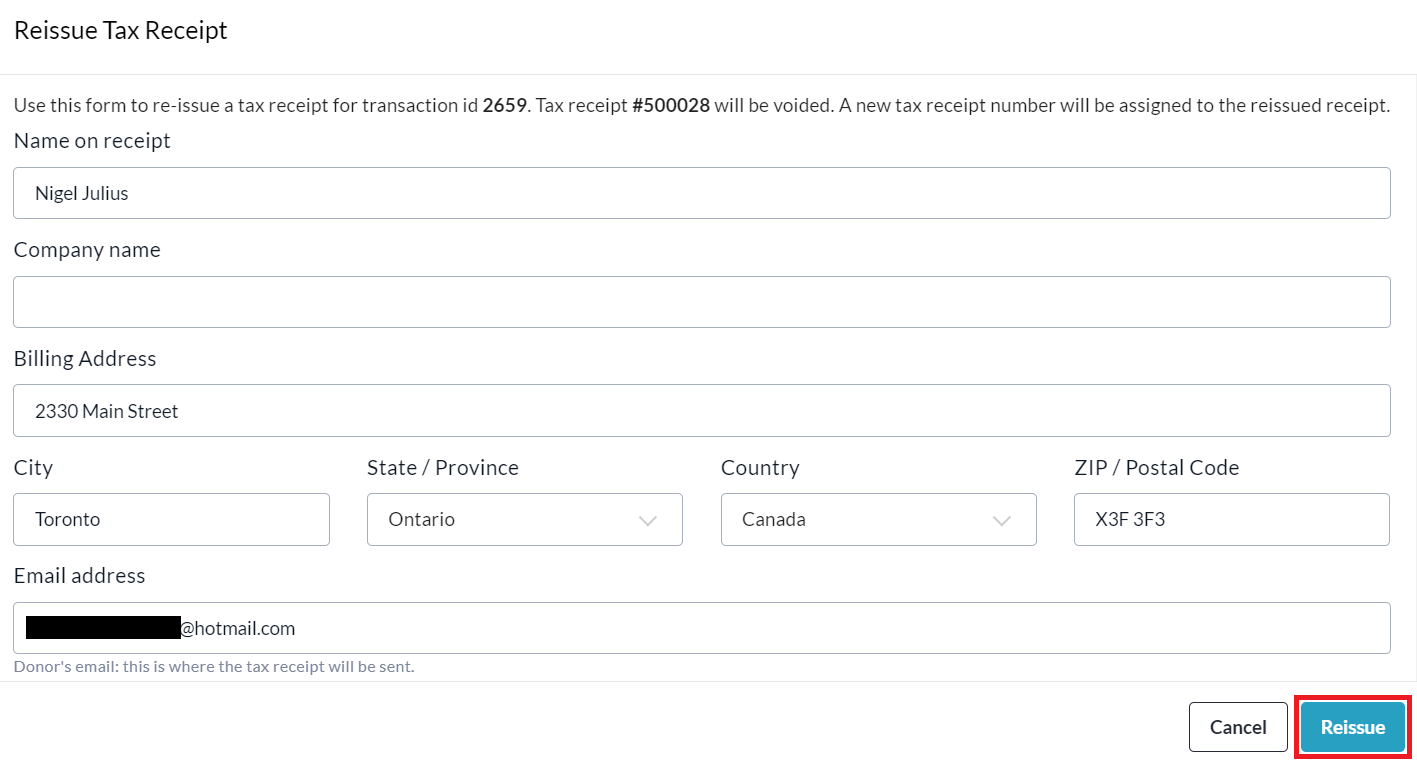
(You can also scroll down to adjust the Amount total and Amount benefit.)
Re-issuing a tax receipt will VOID the original receipt. This will be indicated within your tax receipts report and a VOID stamp will be added to the PDF copy of the original receipt.
The donor will receive notification of this and the re-issued receipt (sent to the email address entered when filling out the new info) will communicate that it is a replacement for the original receipt.
Click the Download button to download either a ZIP archive containing all PDF tax receipts within your date range and filters set, or an Excel Tax Receipts Report.