
Donation Matching
Donation Matching is a great way to encourage donors to increase the value of their donation, while also allowing corporate donors the chance to associate themselves with a large donation campaign.
It allows your organization to designate an offline pool of funds which can be used as a multiplier for standard donations. This is a feature which must be enabled by a CrowdChange administrator, so please reach out to your Partner Success Representative if you wish to have it enabled.
To enable Donation Matching, toggle it on while creating your fundraiser under Advanced Features.
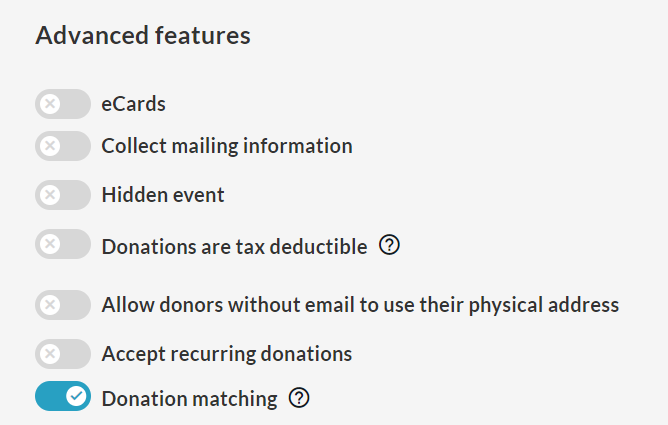
Once your fundraiser is created, follow the steps below to set up Donation Matching.
Go to your fundraiser while logged in and click Manage Fundraiser.
Click Donation Settings on the left sidebar, then Donation Matching.
Enable the Donation Matching toggle slider and click Save.
Scroll down to set up Donation Matching, as described below.
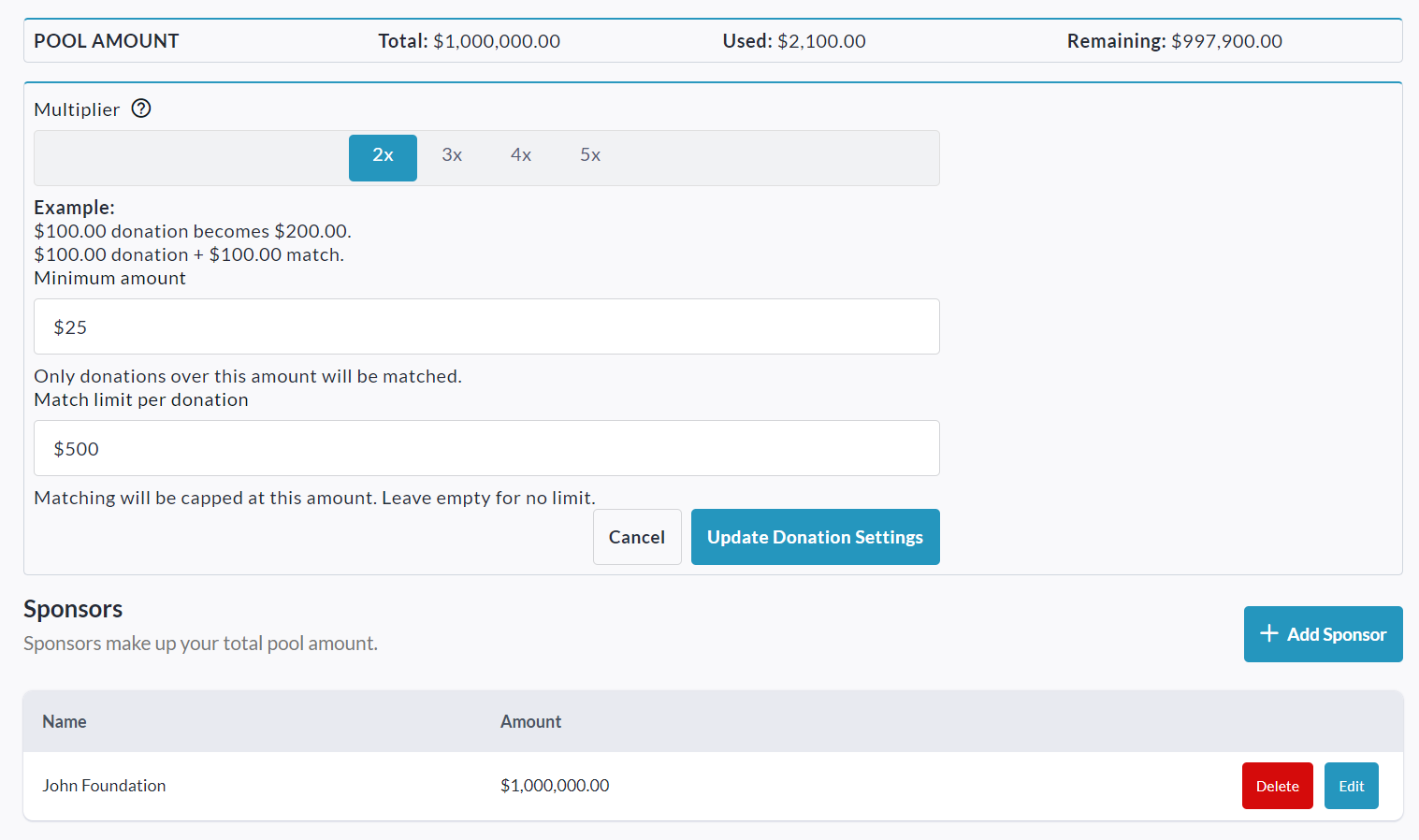
You can select the multiplier you would like to use (2x, 3x, 4x, or 5x).
If desired, you can also set a minimum and maximum donation amount for matching. E.g. If a minimum of $25 is set, only donations $25 and above will be matched. If a limit of $500 is set, any donations made above that will only be matched up to $500.
The Sponsors section determines where you will draw your funds from. This is an offline pool of money, so please ensure that you are accounting for it with your sponsor directly. Click Add Sponsor to get started.
Set the Sponsor Name, and Pool Amount (this is essential so that you don’t over-promise to your donors).
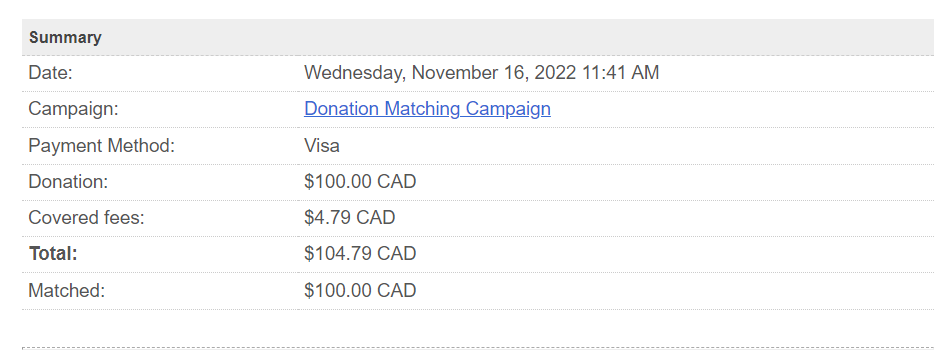
Once these settings have been confirmed, all donations made during your Donation Matching campaign will show both the donated amount and the matched amount when looking at the Donations list:

Donor Receipts will also show this matched amount, as well as the original donation amount.
The Donation Matching menu will reflect any changes to the pool of funds, allowing you to keep up with how much money is available at any point in time for this matching campaign.


Details of matched amounts through a Donation Matching campaign can also be seen in the Admin Donations Report.
Editing Matched Donation Amounts
Admins have the ability to update the matched amount directly on individual donations within the Admin Donations Report. This is especially helpful for scenarios like refunds, partial refunds, correcting offline or duplicate donations, or adjusting amounts after an event. All edits respect the matching pool limits.
To edit the matched amount:
Go to your CrowdChange site and log in.
Click Profile, then select Admin.
Click Reports, followed by Donations Report.
Locate the donation by scrolling or using the search bar, then click on the transaction.
In the Transaction Breakdown section, click Update.
Enter the updated matched amount and click Save.
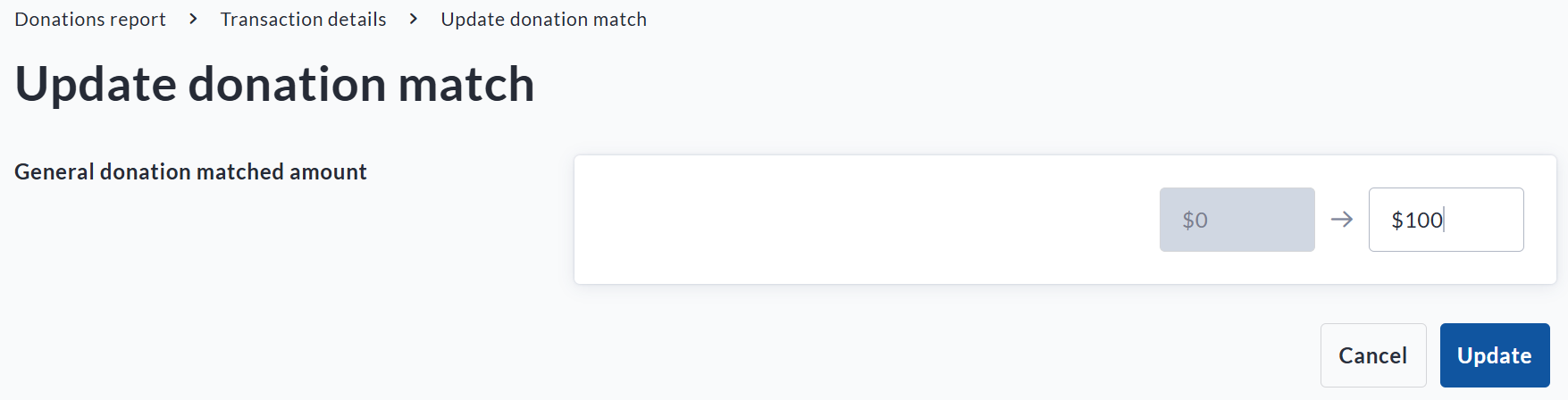
A donation match being added using the Admin donations report
See Who Matched Donations
The leaderboard can display which sponsor provided the match for each donation. This adds transparency for donors and gives sponsors the visibility and recognition they deserve, helping to encourage continued support.
To enable this, please follow these steps:
Go to your CrowdChange site and log in.
Go to your fundraiser and click Manage fundraiser.
From the Fundraiser dashboard, click Design my fundraiser.
In the Leaderboard block click Edit, then click the Pencil icon.
Under Donations, click Set up.
Toggle on Match indicator to show the donation was matched, and Sponsor name to display the sponsor responsible for the matched funds
Once complete, click Save
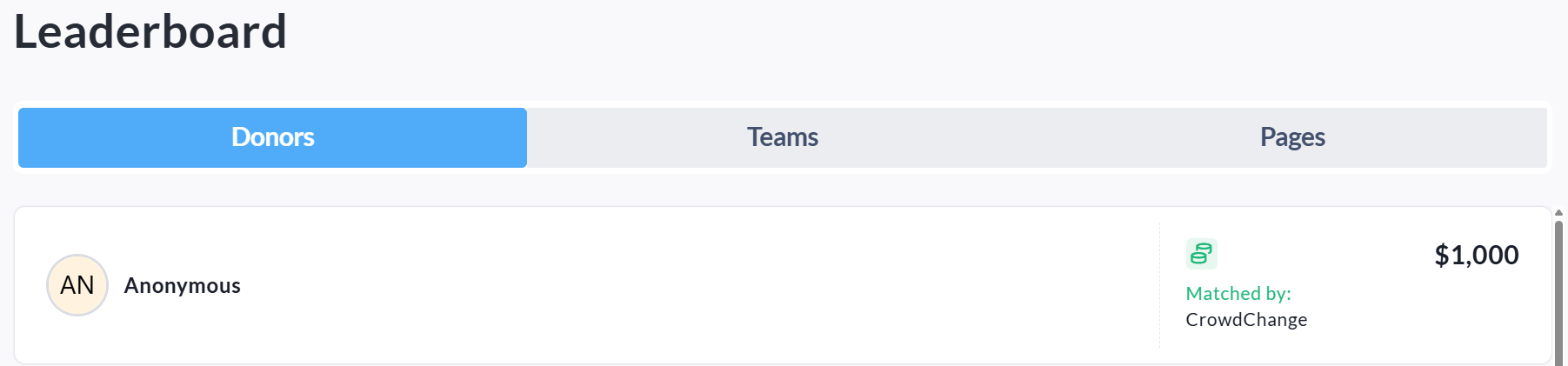
A donation with Sponsor name enabled shown in a front-facing leaderboard